The game screen
Where everything is on screen: portraits, hunt status, shortcuts and menu, the observed hero with the skill bar, the action buttons and the windows.
The screen at a glance
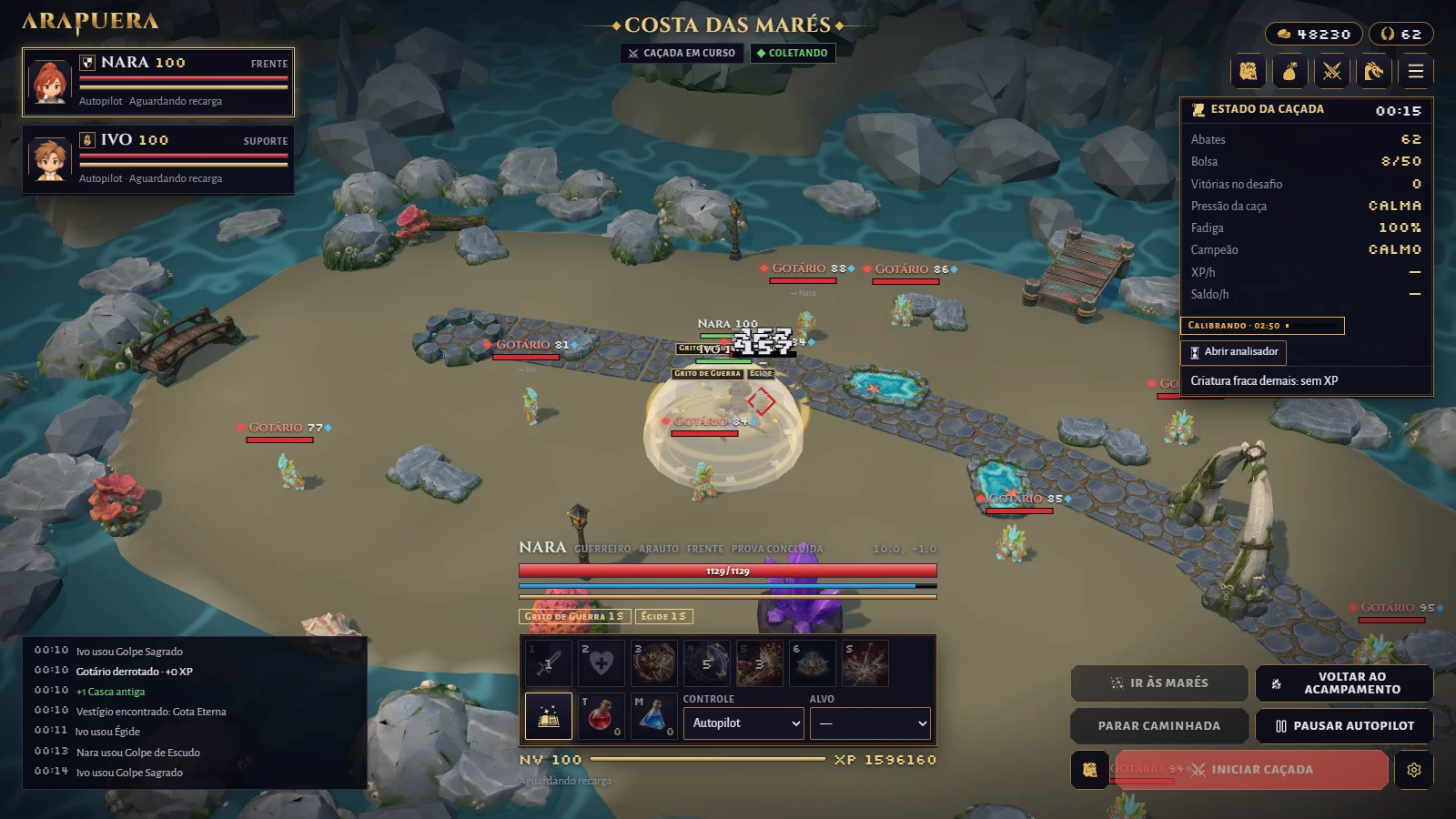
The game has no separate screens: the 3D world fills everything and the interface floats over it. What you need all the time stays fixed at the edges; the rest opens in windows you drag wherever you like.
| Where | What is there |
|---|---|
| Top left | The duo portraits: name, level, role, health, XP and what each hero is doing. |
| Top center | The name of the place and the status chips (hunt in progress, loot, immunity, online). |
| Top right | Gold and kills, the window shortcuts, the Menu and the Hunt status panel. |
| Bottom left | The Log: the latest events, with the play time. |
| Bottom center | The observed hero: bars, states, the skill bar, potions, control mode and target. |
| Bottom right | The action buttons: go to the map, return to town, start and pause the hunt. |
The duo portraits
Each hero in the duo has a portrait with the class face, the role symbol (Front, Rear or Support), name, level, health bar, XP bar and a status line. The status line combines the control mode (Autopilot, Manual or Wait) and what the hero is doing right now, for example "Seeking target", "Attacking" or "Out of range".
Clicking a portrait observes that hero: the bottom panel switches to its bars and skills. Observing changes neither the duo nor the control mode. A fallen hero’s portrait is dimmed.
Place and status, at the top
The title at the top is where the duo is: the town (Dawn Camp), the hunting map or the boss name. Under it sit the status chips. It pays to know how to read each one:
| Chip | What it means |
|---|---|
| In town | The duo is in town. No monsters, no combat. |
| Hunt in progress | The hunt is on: the autopilot seeks and attacks. |
| Autopilot paused | The duo is on a map, but the hunt has not started or was paused. Only "Start hunt" turns it on. |
| Company defeated | Both heroes fell. Use "Recover in town". |
| Challenge in progress | The duo is in a boss room. |
| Gallery underway | The duo is in the Root Gallery. |
| Gathering | A hero is cutting wood; the hunt is paused. |
| Collecting | There is room in the bag: drops are picked up. |
| Loot blocked | The bag is full: nothing new is picked up until you make room. |
Other chips show only when they apply: immunity, for the 8 s after reaching a map; VIP; and the connection chip, when you play online. With a full bag during the hunt, a red alert appears under the chips, with a button that opens the Bag.
Shortcuts and Menu
At the top right are the shortcuts for the hunt-loop windows (Bag, World, Company, Challenge) and the Menu button, which lists every window in four groups. Clicking a shortcut opens the window; if it is already open behind another, it comes to the front; if it is in front, it closes. A number on the Menu button warns of pending friend, group or guild invites.
| Group | Window | What it is for | Opens |
|---|---|---|---|
| Company | Bag | The 50 bag slots, by category. Click an item to see its detail, equip, lock or refine it. | From the start |
| Company | Equipment | Each hero’s slots, gear score and set. Unequip, hand a piece to another hero and refine. | After the first kill |
| Company | Company | The active duo, the roster and recruiting new heroes. | After the first kill |
| Company | Attributes | Attributes: spend points, preview, reset. Also the Trial and the specialization. | After the first kill |
| Company | Skills | The passive tree, the kit and bar, the summary and the suggested builds. Shortcut: K key. | From the start |
| Company | Workshop | The workbench: decorations, crafting unique items, carpentry and woodcutting. | After the first kill |
| Company | Titles | Completed goals become titles to claim and equip. | After the first kill |
| Company | Wardrobe | Each hero’s cosmetics, one tab per kind, with the 3D fitting room to see them before equipping. | After the first kill |
| World | World | The hunting maps: choose and travel. Also the Marked Hunt, the event, the town goal and, at level 100, the Court of Sovereigns. | After the first kill |
| World | Endless Arena | The Endless Arena: the entry card and the setup (creature, difficulty and bonus). Only heroes at level 100 get in. | After the first kill |
| World | Training Hall | The Training Hall: the entry card and the dummy setup for measuring the build’s DPS. | After the first kill |
| World | Autopilot | One tab per hero (control, role, healing, potions), the hunt tab (pressure) and the Drop tab (what to pick up and what never to collect). | After the first kill |
| World | Analyzer | The session numbers: XP per hour, damage, loot, supplies and what was lost to a full bag. | From the start |
| World | Bestiary | Species seen, kills, milestones and seals. | After the first kill |
| World | Album | The Vestige collection and the aura it unlocks. | After the first kill |
| World | Challenge | The boss rooms: requirement, rules of the telegraphed blow, enter, fall back and abandon. | After the first kill |
| World | Gallery | The Root Gallery, a 3-room expedition. | After the first kill |
| Social | Friends | Invites by code, friends list and blocks. | From the start |
| Social | Group | Form a group with friends and set out together. | From the start |
| Social | Guild | Found or join a guild, board, project and Special Elixirs. | From the start |
| Social | Market | Buying and selling between players, at a fixed gold price. | From the start |
| Account | Thaís | The conversation with Thaís: rest, sell, buy, bank and tutorial. | Only in town |
| Account | Merchant | Buy potions and gear, sell, salvage, sale and salvage filters and heirlooms. | From the start |
| Account | Bank | The account storage, in tabs. | From the start |
| Account | Shop | Cash, cosmetics, VIP and passes. | From the start |
| Account | Votes | Vote on rankings, see your vote points and spend them in the vote shop. | From the start |
| Account | Account | Sign in, play online, send and fetch the company, report a problem. | From the start |
| Account | Guide | The tour: pause, review and unlock every control. | From the start |
| Account | Settings | Language, theme, scene and window positions. | From the start |
The observed hero
The bottom panel shows one hero at a time, the observed one. In the header: name, equipped title, class, specialization, role and, during the Trial, its progress. Then come the bars:
| Bar | What it is |
|---|---|
| Health | Current and maximum health. In the Court of Sovereigns, the hatched part is the Wave Mark. |
| Mana | The resource every class has. It pays for most skills and regenerates on its own. |
| Guard | The Warrior’s own resource. It resets when changing places. |
| Focus | The Archer’s own resource. It resets when changing places. |
| Overload | The Mage’s own resource. It resets when changing places. |
| Conviction | The Priest’s own resource. It resets when changing places. |
| Cadence | The Assassin’s own resource. It resets when changing places. |
| Essence | The Summoner’s own resource. It resets when changing places. |
| XP | The level and how far the next one is, at the bottom of the panel. |
Under the bars are the states active on the hero (shield, poison, potion effect), each with its remaining time. Then comes the row of slots:
- Attack target and Heal ally: the two basic actions.
- The skill bar: 5 slots, 4 for common skills and the last one for the supreme. The slot order is the autopilot’s priority. Hover to read what each does; the number over a slot is the cooldown left.
- Skills (K): opens the Skills window.
- Health Potion and Mana Potion: drink one dose and show how many are left in the bag.
- Control: Autopilot, Manual or Wait.
- Target: the list of creatures on the map, with level and health.
The action, skill and potion slots only respond to clicks with the hero on Manual and the hunt running. On Autopilot they work as a readout: they show what the hero has and the cooldowns. The letters and numbers on the slots are position labels; the game’s only keyboard shortcut is K, which opens and closes Skills. How to play in manual is in Your first hunt.
Hunt status and Log
At the top right, two pills show the account’s gold and total kills. Below the shortcuts, the Hunt status panel sums up the session:
| Line | What it shows |
|---|---|
| Kills | Company kills since the start. |
| Bag | Slots used out of 50. This is the number to watch during the hunt. |
| Challenge victories | Victories against bosses. |
| Hunt pressure | The pressure in effect on the map: how many creatures it sustains. |
| Fatigue | The fatigue band: the share of XP and drops the hunt yields right now. |
| XP/h | Session XP per hour. Shows "—" while calibrating. |
| Balance/h | Loot and reward value minus the cost of potions used, per hour. |
The panel’s last line is a short notice of what just happened, and the Open analyzer button leads to the full numbers. The Log, at the bottom left, keeps the latest events with the play time: kills with their XP, items dropped, levels, sales, teleports and, most important, "Loot blocked: bag full". Pressure and fatigue rules are in Maps and hunt pressure and Fatigue.
The action buttons
| Button | What it does | When it is enabled |
|---|---|---|
| Go to the woods | Teleports the duo to the chosen map. The button name changes with the map. | In town. |
| Return to camp | Teleports the duo to town and ends the hunt. | On a hunting map. |
| Start hunt | Turns the hunt on: the autopilot starts acting. | On a map, with the hunt stopped. |
| Pause autopilot | Stops the hunt. Creatures stay on the map. | With the hunt running. |
| Stop walking | Stops the hunt and cancels the heroes’ paths. | Always. |
| Recover in town | Refills the company’s health. After a defeat, takes the duo to town. | Appears with the duo defeated, or in town with someone wounded. |
Next to Start hunt there is a gear: it opens the Autopilot window, with each hero’s control and the hunt setup. During a boss or the Gallery, teleports are disabled: you leave through the challenge window.
Windows
Several windows can be open at once. To arrange them:
- Drag: hold the title bar and move. The bar never leaves the screen entirely.
- Bring to front: click anywhere on the window.
- Back to the default spot: double-click the title bar.
- Keyboard: with focus on the title bar, arrow keys move the window (Shift makes the step larger) and Home sends it back to the default spot.
- Close: the X on the bar, or the same shortcut that opened it.
- Rearrange windows: in Settings, realigns every open window.
Each window’s position is stored in this browser, not in the account. On a narrow screen windows do not drag: they open stacked. The Skills window is the exception: it opens large, over everything.
The scene and Settings
The 3D world also responds to the mouse:
- Mouse wheel (or pinch, on touch): zooms the camera in and out.
- Right button drag: rotates the camera around the duo.
- Click on the ground: sends the observed hero there and switches it to Manual.
- Click on a creature: picks it as the target.
- Click on a hero: starts observing it.
- Click on Thaís, in town: opens the conversation with her.
Settings holds the language (PT-BR or EN), the Toggle theme button (light and dark), Close scene and Open scene, which turn the 3D drawing off and on without stopping the game, and Rearrange windows. Closing the scene is useful to keep the game running on a weak machine: the interface keeps working in full.